From download to your first answer.
About ten minutes, start to finish. Screens below are the real app, shown with an invented candidate and interview.
Download for WindowsBefore you start
Have these ready:
- A Windows 10 (version 2004 or newer) or Windows 11 computer, 64-bit, with internet.
- Your access code, which looks like
CS-XXXX-XXXX-XXXX-XXXX-XXXX. It is given out personally and works on one computer. - Two API keys that you create yourself, so you pay the providers directly:
Tip: create the keys now and keep the tabs open. You will paste them into the app in step 3.
1 Download and install
- 1
Download the installer
Press Download for Windows above. You get a file called
ConferSense-Setup.exe. - 2
Run it
Open the file from your Downloads folder. Windows may show a blue “Windows protected your PC” box. That is normal here: the installer is not signed with a paid certificate yet.
Click More info, then Run anyway.
If there is no “Run anyway” button. Your PC has Smart App Control switched on, which blocks every unsigned app. Open Windows Security → App & browser control → Smart App Control settings and set it to Off. Windows does not let you turn it back on later without resetting the PC, so only do this if you are comfortable with that. - 3
Let it finish
A small progress window installs ConferSense for your account (no administrator password needed) and opens it. Later, open it from the Start menu.
2 Unlock with your code
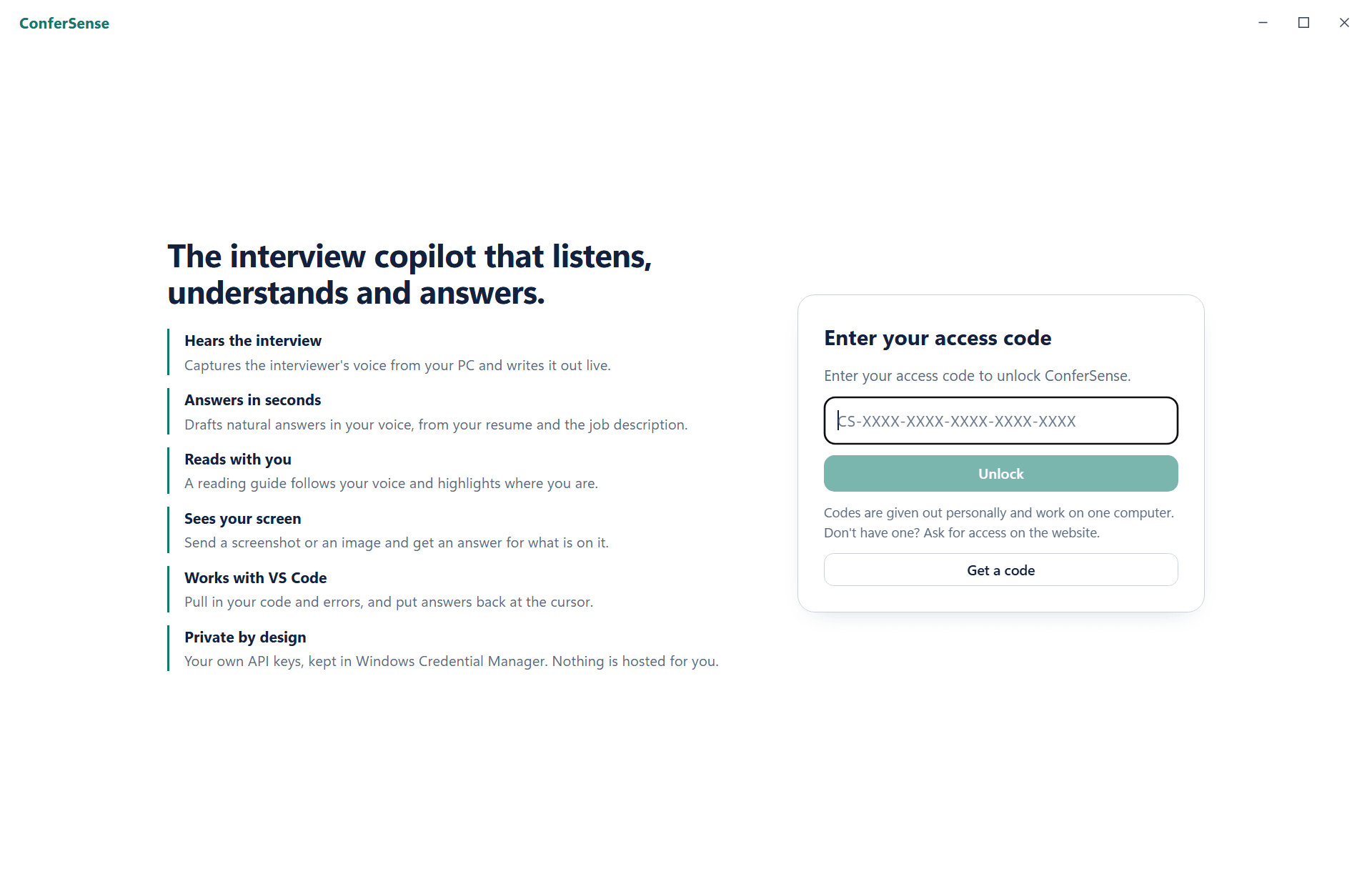
The first time you open ConferSense it shows a welcome screen and a box for your access code. Until a valid code is entered, nothing in the app works.
- 1
Type or paste your code
It formats itself as you type. Press Unlock. You need internet for this one check.
- 2
That is it
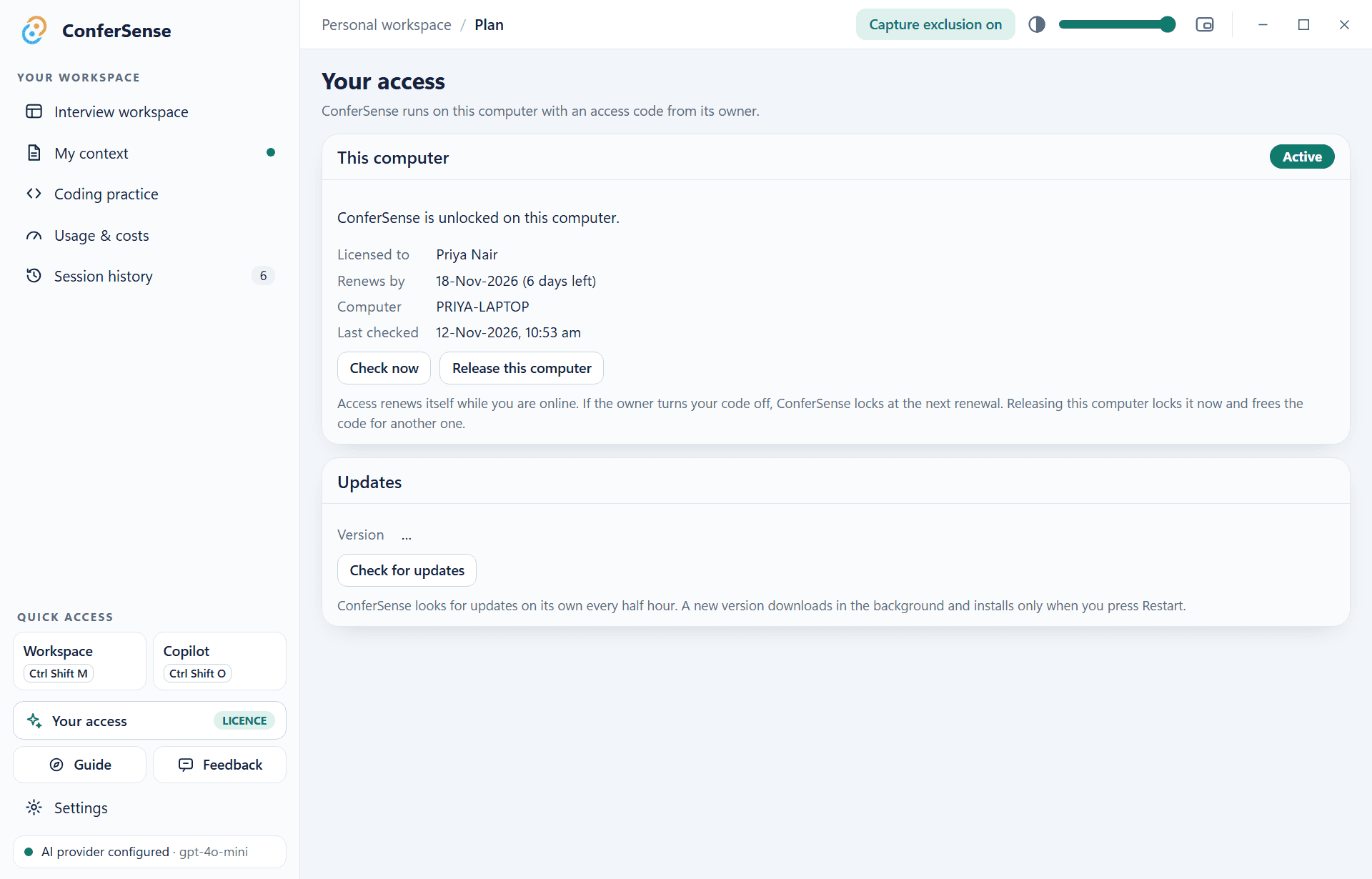
The app unlocks and re-checks itself in the background every few minutes, and whenever you come back to the window. If the owner switches your code off, it locks again at the next check, usually within five minutes.
3 Add your keys
- 1
Open Settings
Click Settings at the bottom of the left sidebar and find API keys.
- 2
Paste the Groq and OpenAI keys
Paste each key and press Save. They are stored in Windows Credential Manager. The app can use them but never shows them again.
- 3
Optional: faster transcripts
For quicker answers, set Settings → Audio → Transcription to Deepgram and add a Deepgram key. If it ever fails, ConferSense falls back to Groq on its own.
The sidebar status shows “AI provider configured” once the OpenAI key is saved.
4 Tell it about you
This is what makes answers sound like you. Open My context in the sidebar. It saves as you go.
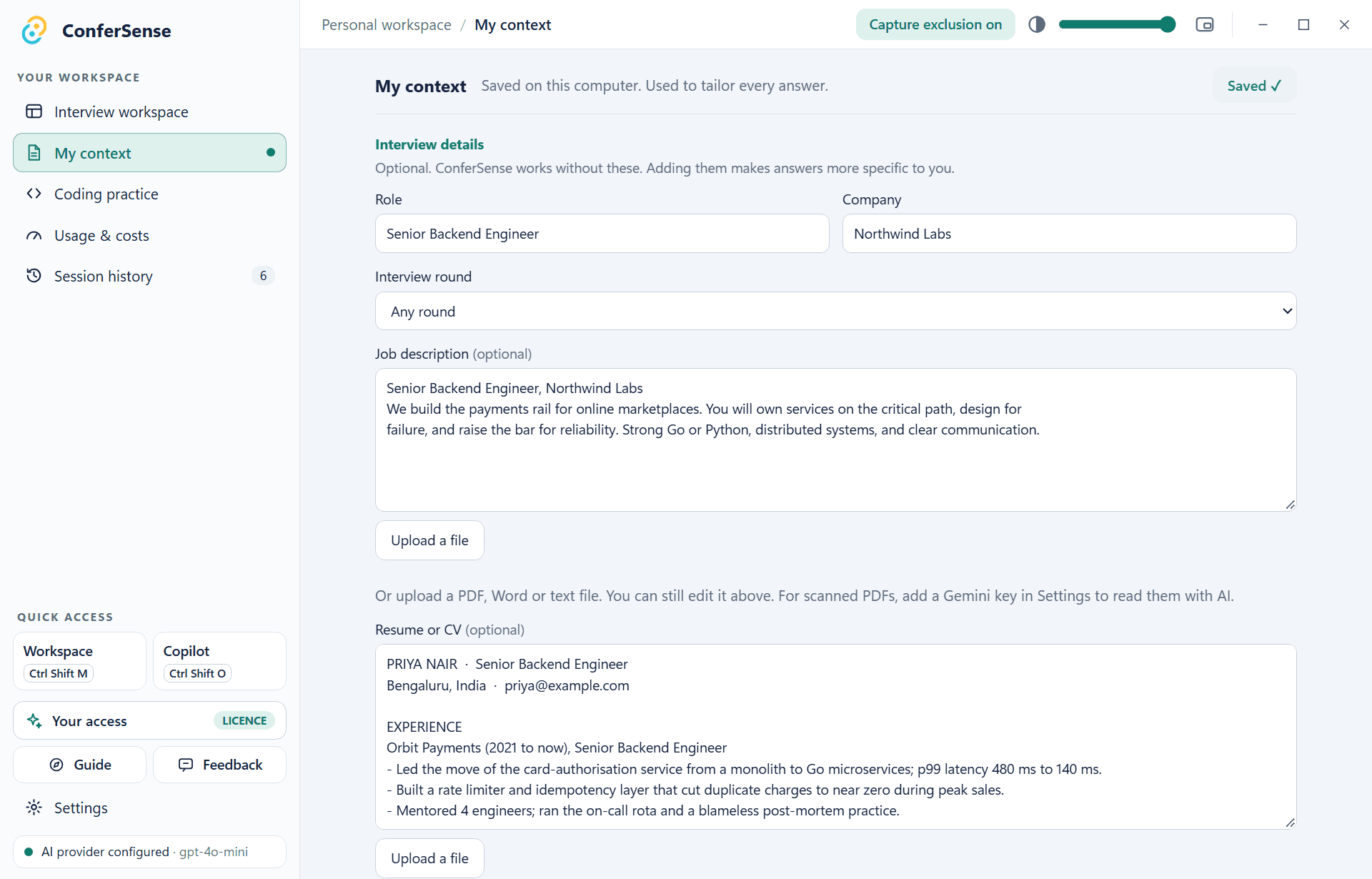
- Role and company for the interview. The session is named after them automatically.
- Interview round, such as recruiter, hiring manager, technical or system design.
- Job description and resume. Paste text or upload a PDF, Word or text file. For a scanned PDF, add a Gemini key in Settings and choose Read with AI.
- Personal details such as location, notice period and visa status. Simple questions about them are answered instantly, with no AI guesswork.
- Notes. Anything to keep in mind, such as “keep answers casual”. Your notes override the built-in style and length rules.
5 Your first interview
- 1
Join your meeting as usual
Zoom, Meet, Teams or anything else. ConferSense listens to your PC’s sound output, so nobody joins the call.
- 2
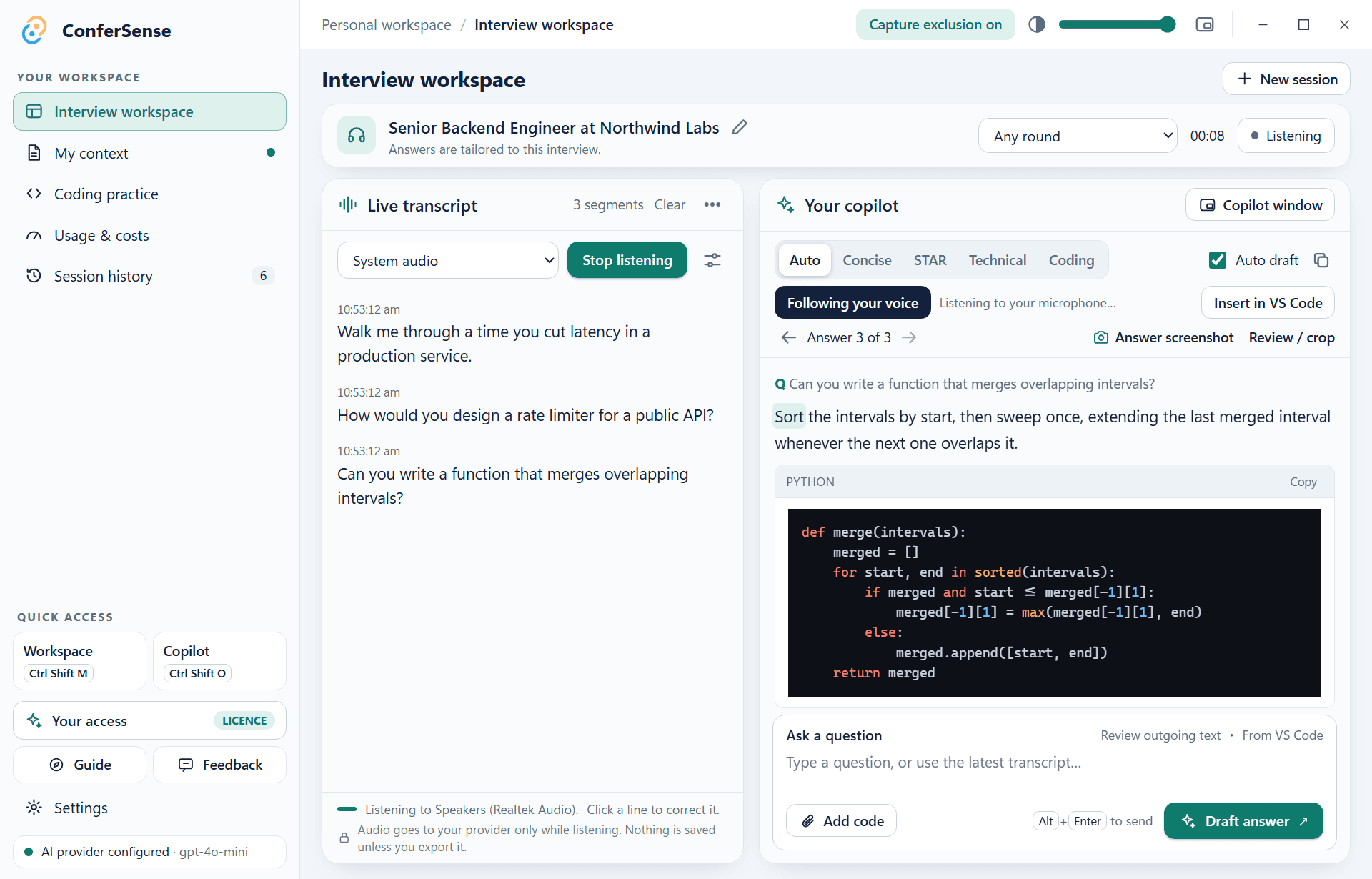
Press Start listening
Leave the source on System audio. If your meeting plays through a specific speaker or headset, pick it in Settings → Audio → Capture device. The interviewer’s words appear in the transcript as they speak.
- 3
Read the answer
When the question ends, the answer streams in on the right. Use the style tabs (Auto, Concise, STAR, Technical, Coding) to reshape it, and the arrows to move between answers.
- 4
Answer early, or ask your own
Press Alt Enter to answer what was just said without waiting for a pause. Or type in the Ask a question box at the bottom.
- 5
Fix a mis-heard word
Click any transcript line, correct it, and the answer regenerates.
The small copilot window
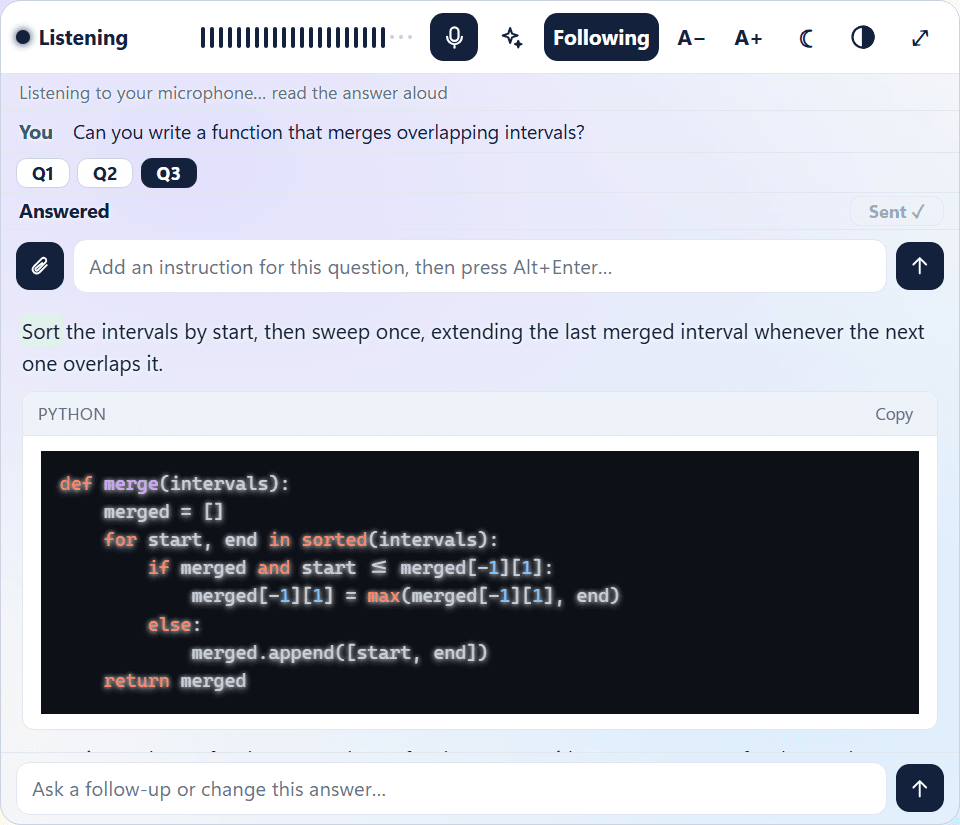
Press Ctrl Shift O (or Copilot window) for a small window that floats above the meeting. Use the Q1, Q2… chips to jump between questions, A− and A+ for text size, and the half-circle button to make it see-through.
6 Stealth mode
Stealth mode keeps ConferSense out of what other people see when you share your screen or record a call. They see your meeting and your slides. You still see ConferSense.
- 1
Switch it on
Open Settings → Privacy and tick Hide from screen sharing. You can also click the Capture exclusion pill in the top bar of the workspace to turn it on or off. The pill says on when stealth is active.
- 2
What changes
ConferSense asks Windows to leave its windows out of screen capture, so Zoom, Teams, Meet, Webex and recorders such as OBS show your screen without it. It also disappears from the taskbar and from Alt-Tab, and a screenshot of your screen taken with Windows tools will not include it. It needs Windows 10 version 2004 or newer.
- 3
Bring it back when you need it
Because it is hidden from the taskbar, press Ctrl Shift Space to bring the window to the front. Ctrl Shift O shows or hides the small copilot window. Turn on Always on top in the same settings if you want it floating over the meeting.
- 4
Do a practice share first
Start a meeting with just yourself in Zoom, Teams or Meet, share your screen, and look at what the shared view shows (the meeting apps let you preview it, or join from a second device). Check that ConferSense is absent before the real interview.
7 Power features
Reading guide
Turn on Settings → Privacy → Reading guide. It then follows your voice along the answer as you read it aloud. Use headphones, or the interviewer’s voice can leak into your microphone. Press Following to pause it.
Answer from your screen
Press Ctrl Alt Enter to capture the whole screen, without ConferSense in it, and get an answer. Review / crop lets you trim it first. You can also paste or drop images: up to 20 go with one question, and ConferSense shrinks them a little when there are many, so the answer stays quick.
Coding practice
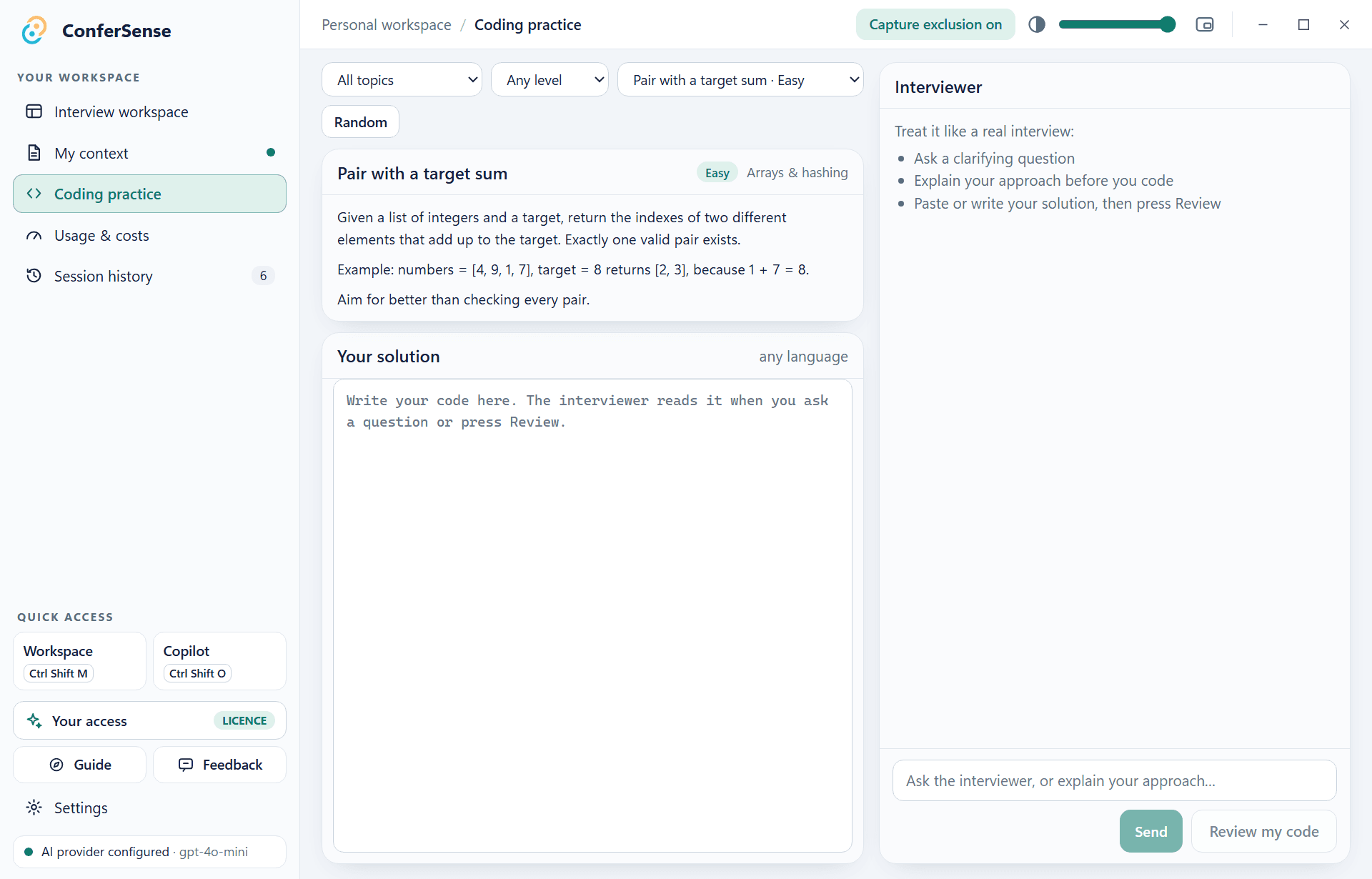
Open Coding practice for problems with an AI interviewer who nudges, asks follow-ups and scores you.
Sessions and costs
Session history reopens, renames, continues or exports a session. Usage & costs totals tokens and an estimated spend.
Profiles
Open Profiles to keep one card per person, each with a CV and personal details. Use for this interview copies them into My context, where you add the role, company and job description. A card is only a template: changes made in My context stay with that interview unless you press Update.
Memory
Memory is a short list of facts about you and how you speak, kept on your computer. You can add to it or delete anything, turn it off, and your resume and My context always come first.
Themes and glass
Pick one of seven themes in Settings → Appearance, including a ConferSense look that matches this website. The slider at the top of the window sets how see-through the backgrounds are.
VS Code
A companion extension sends your open file, errors and terminal output in, and inserts a finished code answer at your cursor. Ask the owner for the extension file.
8 Updates
ConferSense checks for a new version a little after it starts, every half hour, and when you come back to the window. You can also press Check for updates on the Your access page. A new version downloads quietly in the background, then a bar says “Version X is ready”. Press Restart to update when it suits you. It never restarts on its own, so an interview in progress is never interrupted. Only versions signed by the owner will install.
Fixing problems
“Could not reach the licence service”
You need internet to unlock and to renew. Check your connection and any firewall or VPN, then press Unlock or Check now again.
My code is refused
Check for typos (the app tidies the format for you). If it says the code is switched off or has expired, contact the owner. If it says it is already used on another computer, release it there or ask the owner to free the slot.
The transcript stays empty
Make sure the meeting’s sound plays through the device chosen in Settings → Audio → Capture device. After plugging in or switching a headset, press Stop listening and Start listening again. Check the Groq key is saved.
I get transcripts but no answers
Check the OpenAI key is saved and that your OpenAI account has credit. The Usage page shows whether calls are happening.
The window has disappeared
If it is hidden from the taskbar, press Ctrl Shift Space to bring it back.
Windows blocks the installer
See step 1. Choose More info → Run anyway, or switch Smart App Control off if there is no such button.
How do I uninstall it?
Windows Settings → Apps → Installed apps → ConferSense → Uninstall. Release your computer on the Your access page first if you want to reuse the code elsewhere.
Shortcut reference
Answer what was just said right now, without waiting for a pause. In the Ask box it sends your typed question.
Show or hide the small copilot window.
Bring the full workspace to the front.
Bring ConferSense back if it is hidden from the taskbar and Alt-Tab.
Capture the whole screen, without ConferSense in it, and answer what is on it.