Hear the question.
Know the answer.
ConferSense listens to your interview, writes it out as it happens and streams a personal, ready-to-say answer. No bot joins your call, and nothing is hosted for you.
You need an access code from the owner to unlock the app.
- Hiddenfrom screen sharing
- ~1 sto the first word
- 0bots on your call
- Yourskeys, kept on your PC
From their voice to your answer, in four steps.
- 01
Capture
Listens to what your PC plays, so the interviewer's voice is heard even in a headset.
WASAPI loopback - 02
Transcribe
Turns speech into text while they are still talking, then tidies it as it finishes.
Deepgram stream / Groq Whisper - 03
Understand
Finds the parts of your resume and the job that matter for this exact question.
Retrieval over your context - 04
Answer
Streams a natural first-person answer, in the length and style that fits the question.
Streamed from your OpenAI key
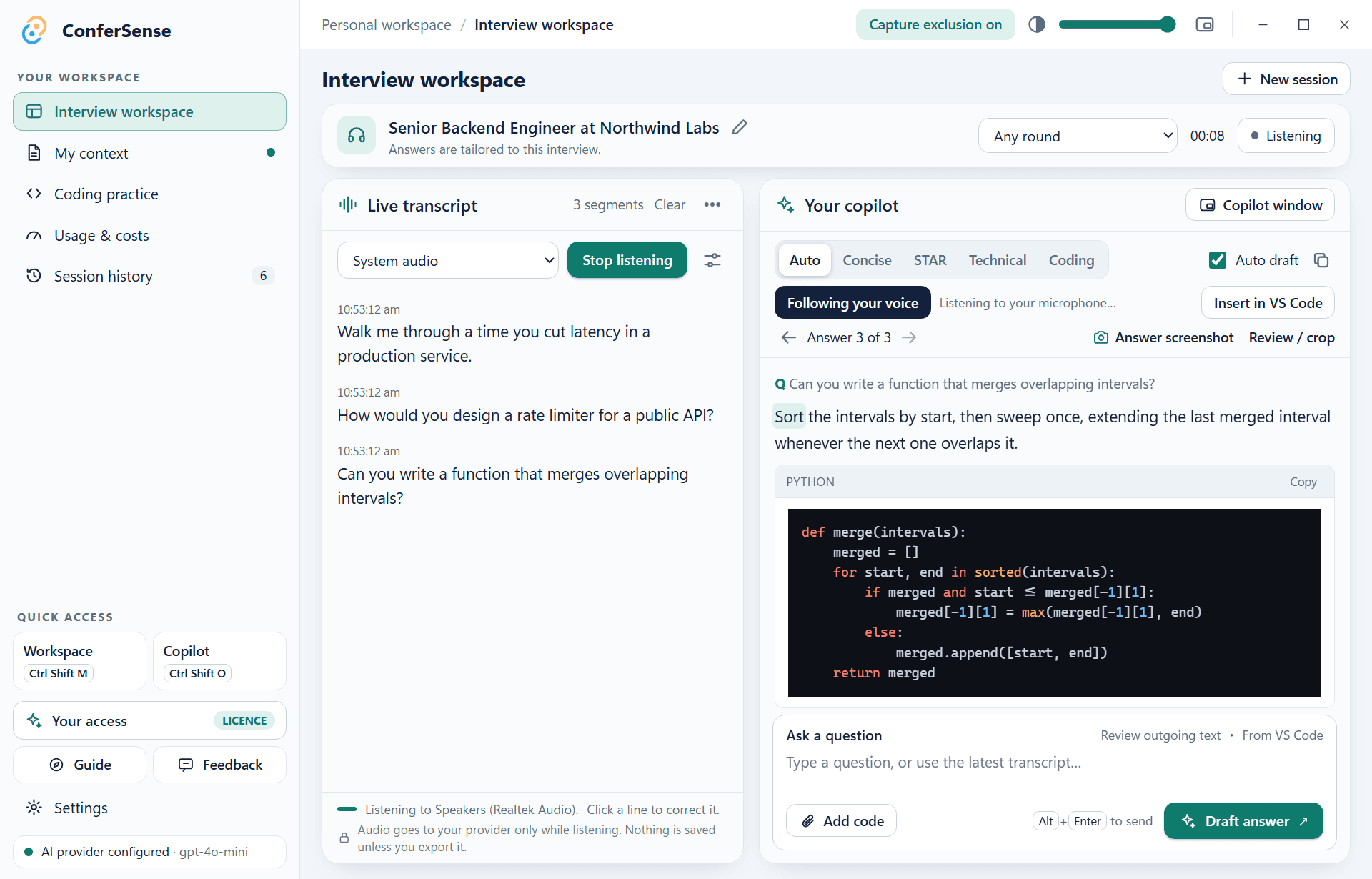
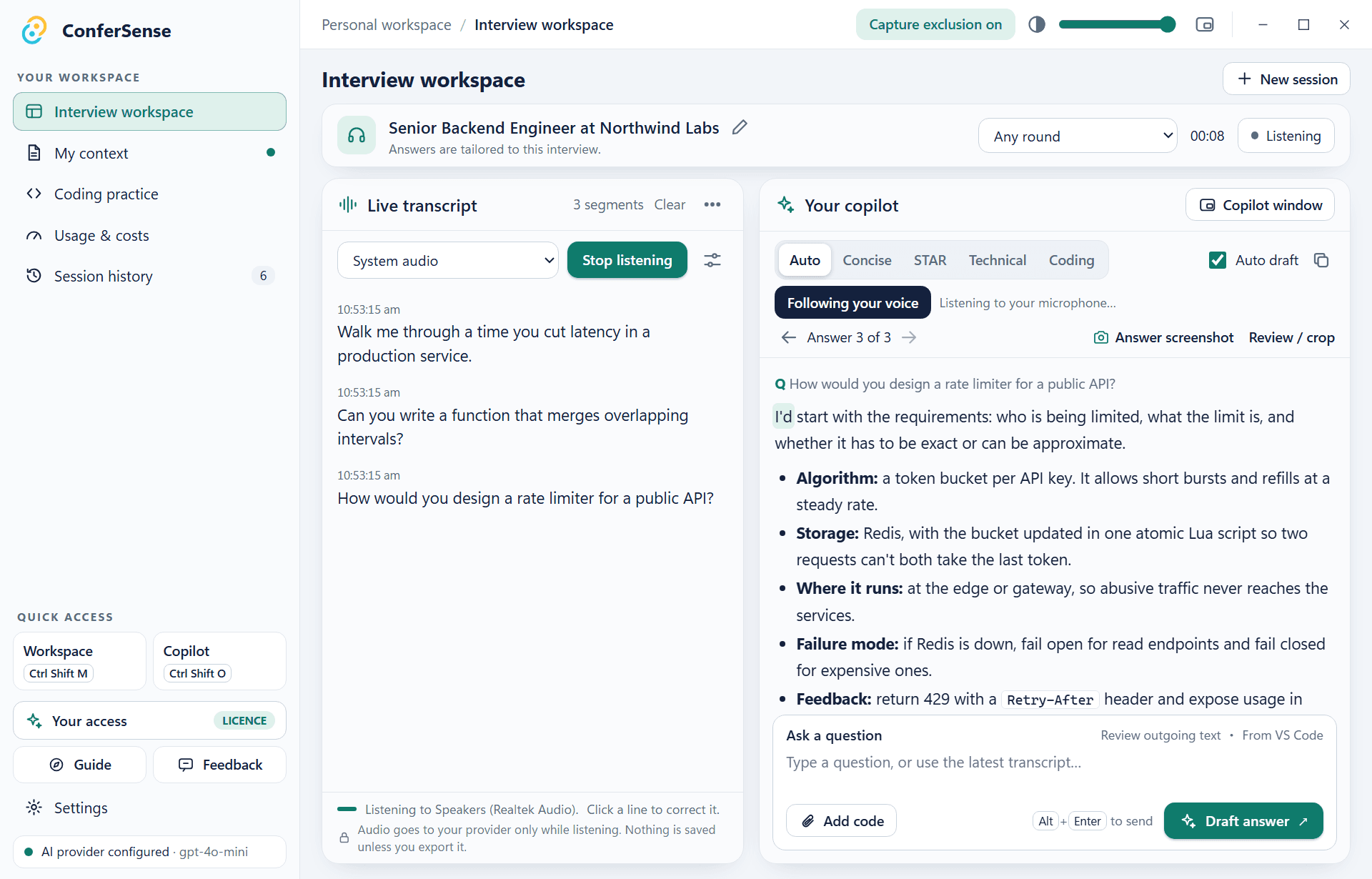
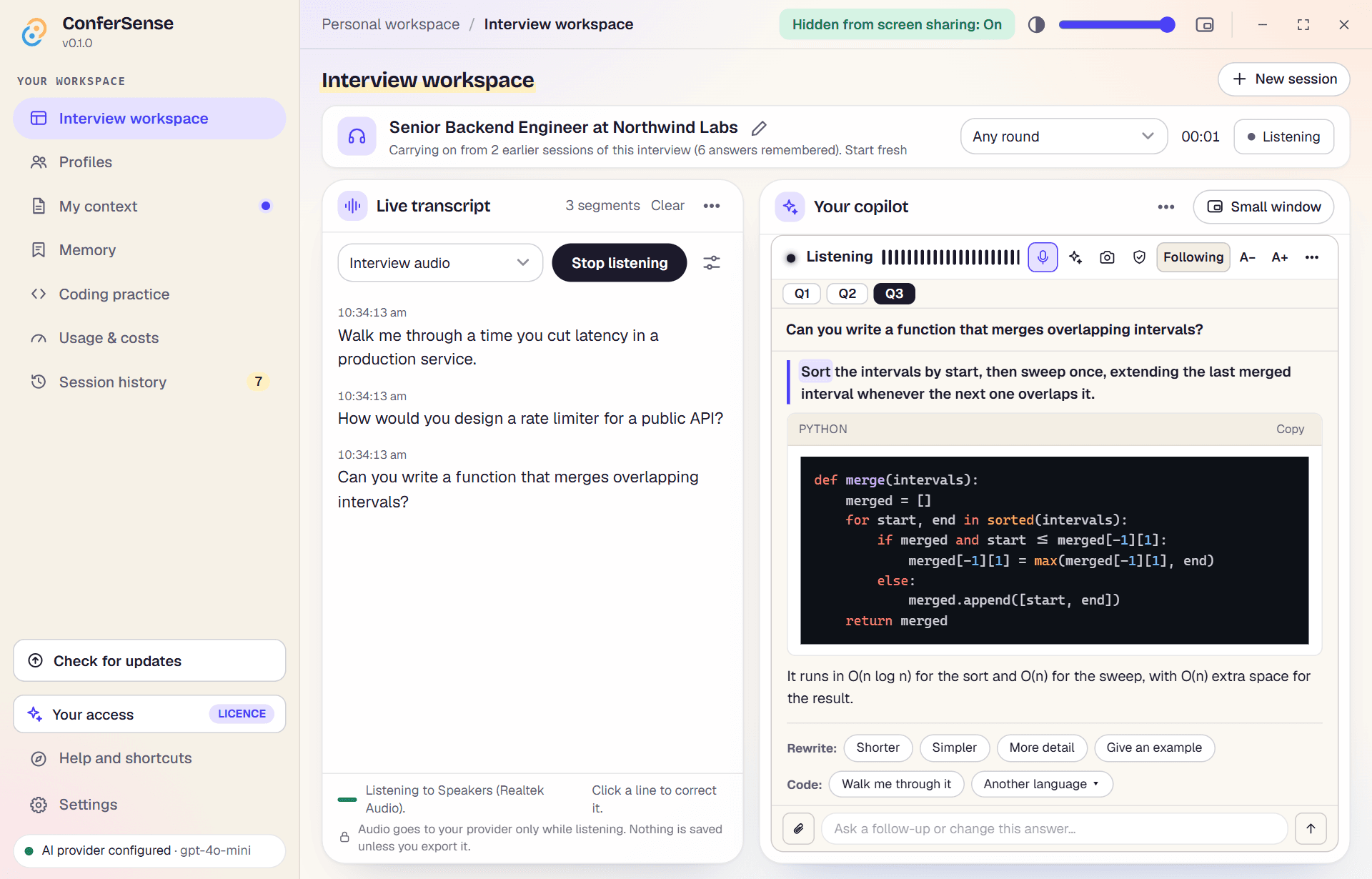
Everything on one screen.
The live transcript on the left, your answer on the right, one answer at a time. Switch the style on the fly, review before you speak, and press Alt Enter to answer the moment a question lands.
- Click any transcript line to correct a mis-heard word, and the answer regenerates
- Auto, Concise, STAR, Technical and Coding styles, switchable mid-interview
- Code answers come with real syntax highlighting and a copy button
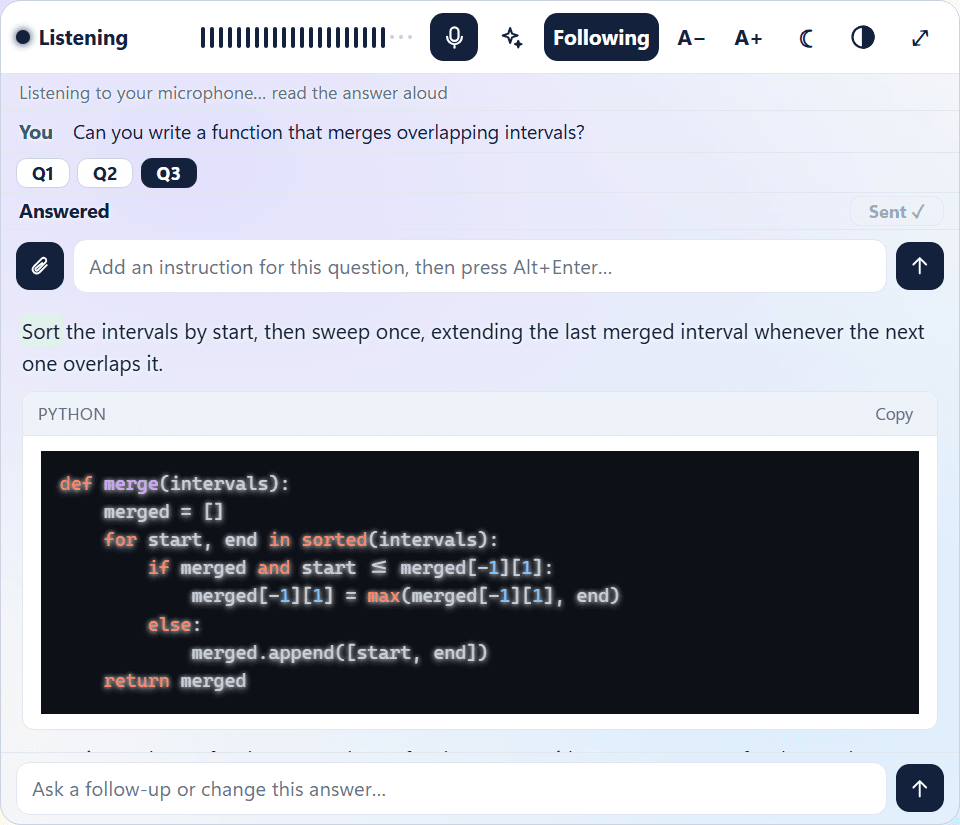
A small window that gets out of the way.
Pop it out with Ctrl Shift O. It floats above the meeting, jumps between questions with one click, and its glass slider lets the desktop show through behind the text.
- Question chips to jump between answers, text size controls, and a follow-up box
- The reading guide highlights where you are as you read aloud
- Hide it from screen sharing in one setting
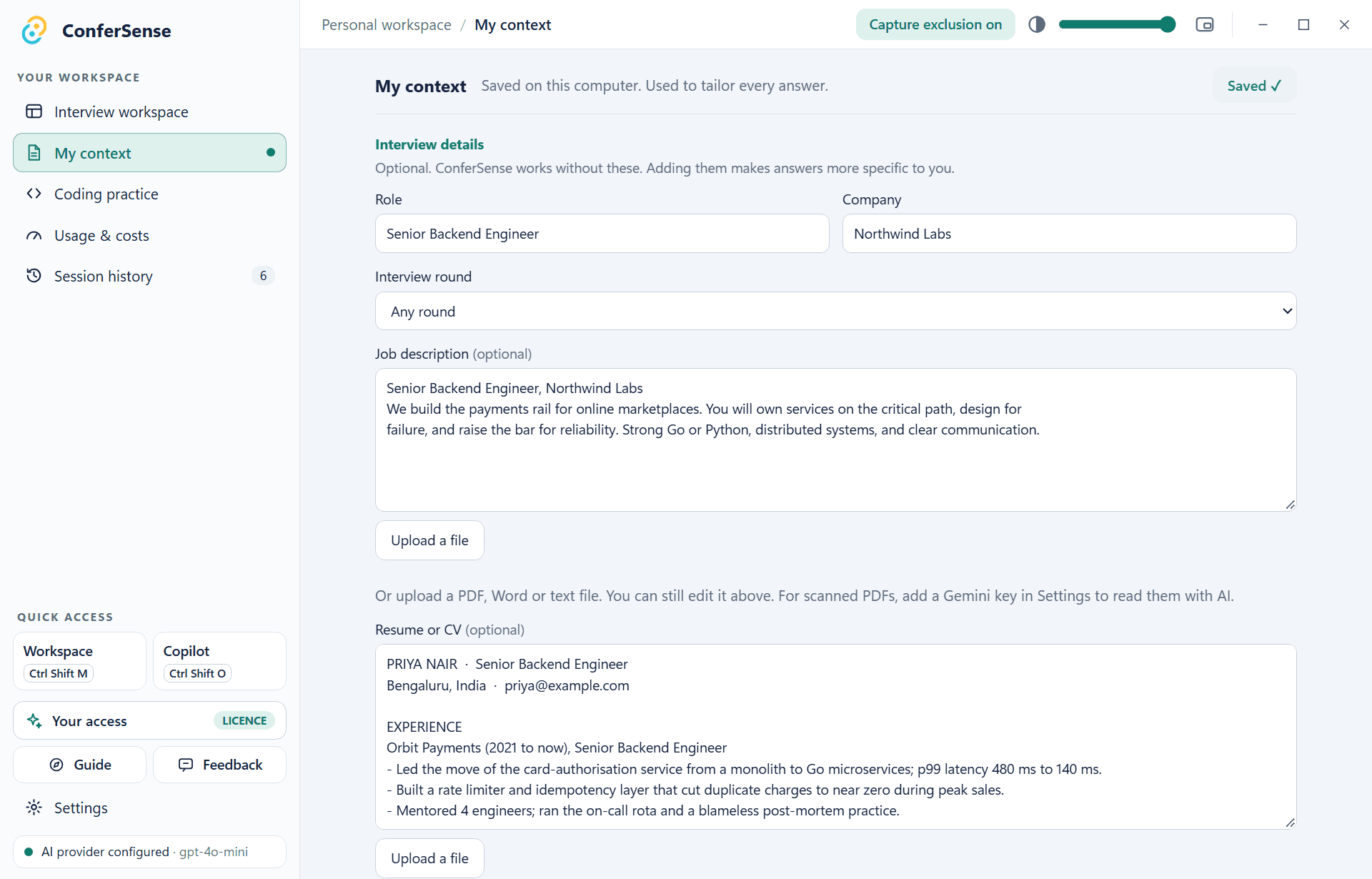
It answers as you, not as a robot.
Add your resume, the job description, the company and the round. Add a few personal details and simple questions (where are you based, what is your notice period) are answered instantly, with no AI guesswork.
- Upload PDF, Word or text, or read scanned documents with Gemini
- Smart context retrieves only the parts that matter for each question
- Your own notes always win over the built-in style rules
- Save a CV and details as a profile and fill them in again with one click
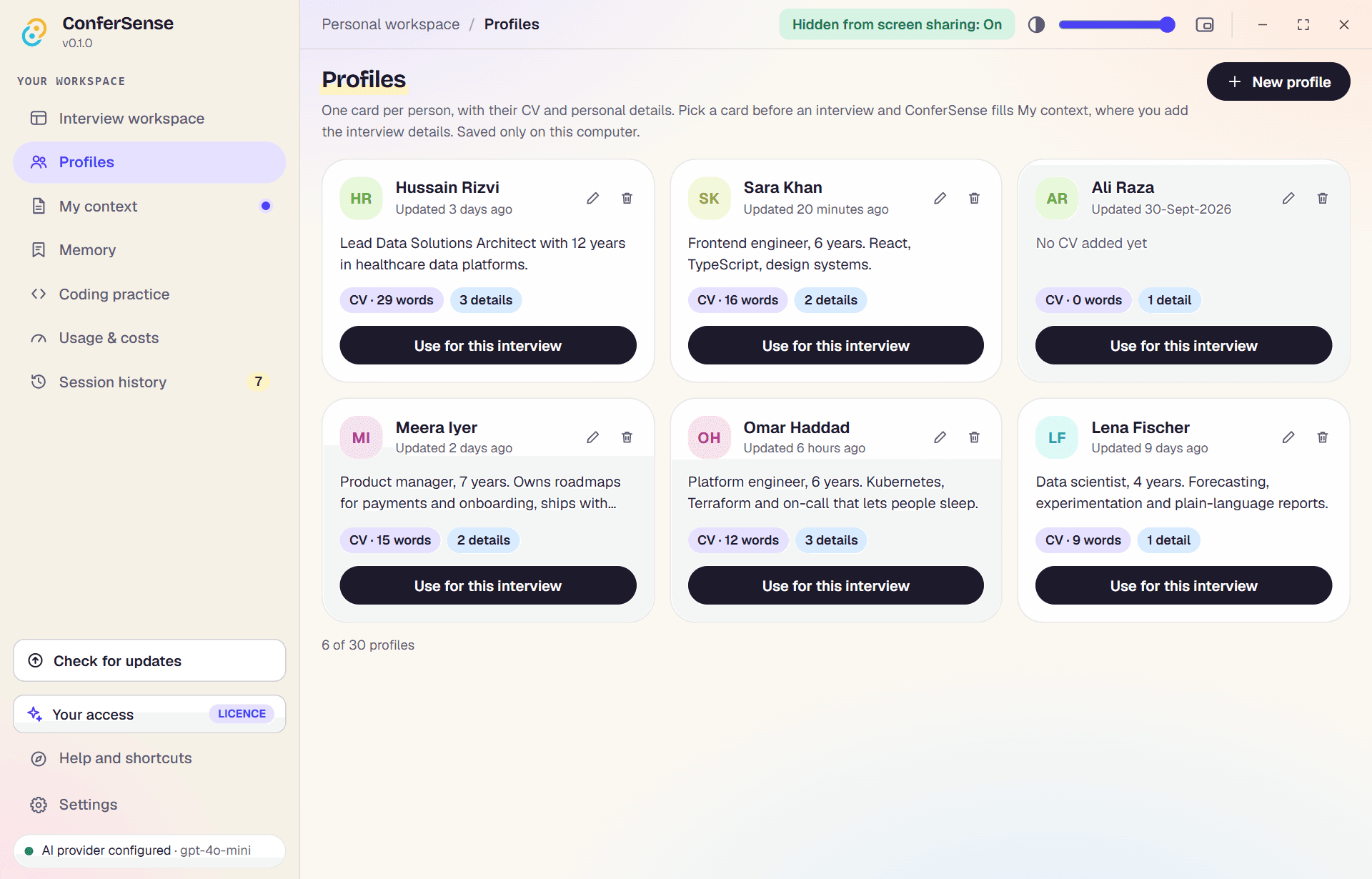
One card per person, ready in a click.
Keep a card for everyone you prepare for, each with a CV and personal details. Pick one before an interview and ConferSense fills My context for you, then you add the role, company and job description.
- A card is a template: changes you make for one interview do not alter it unless you press Update
- Upload a PDF or Word CV straight into a card
- Saved on your computer only, and never tied to what Memory learns
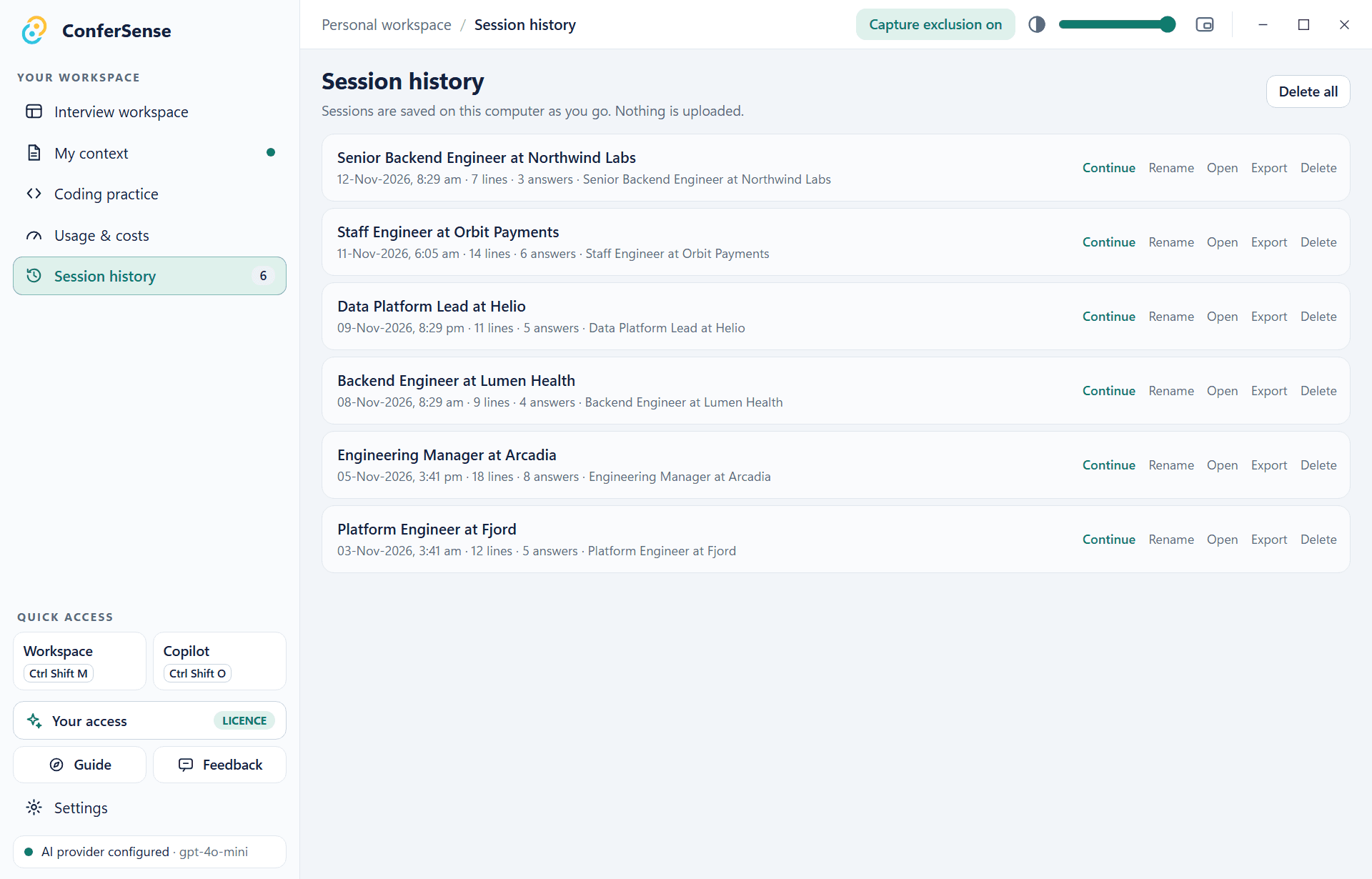
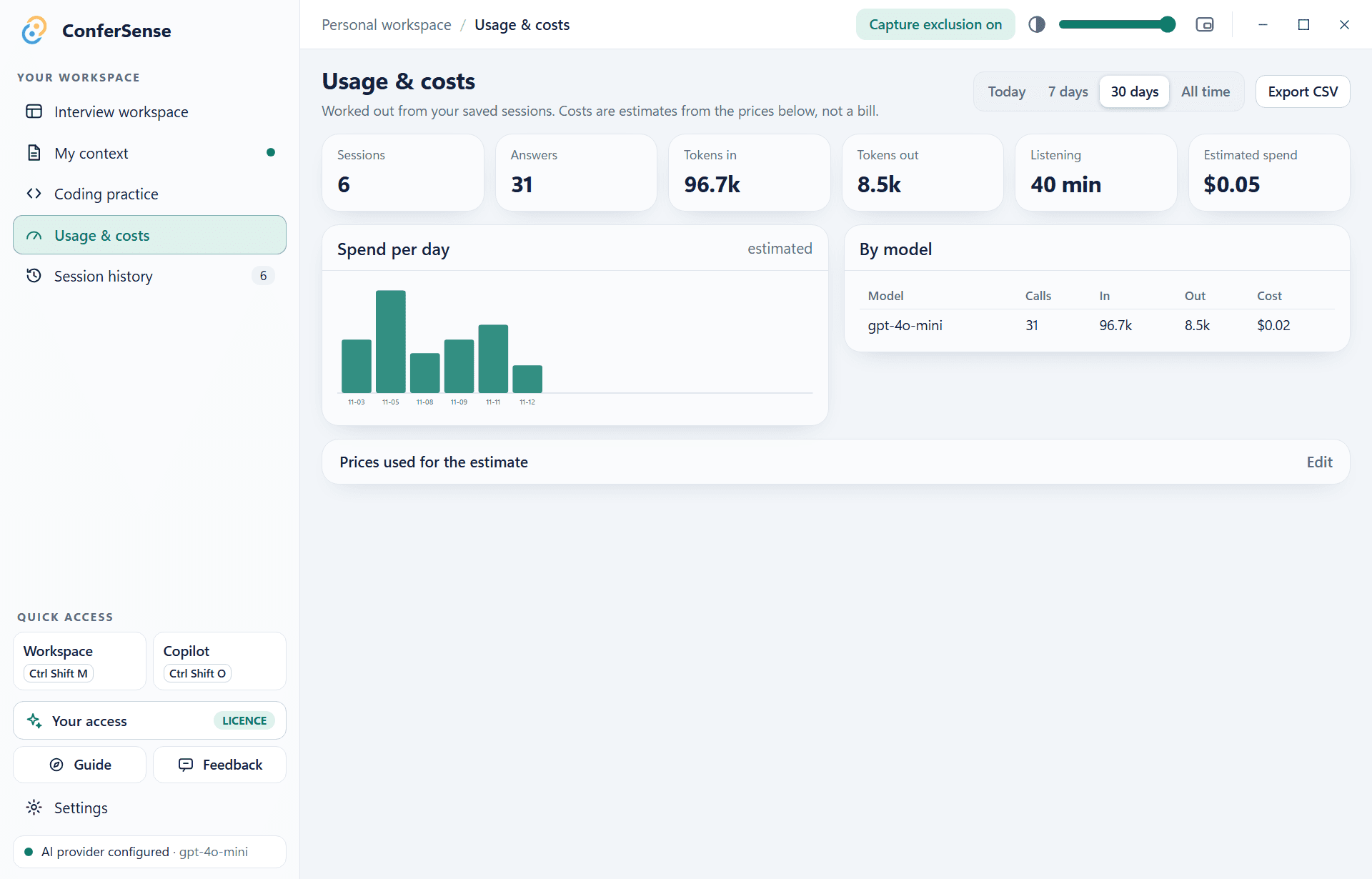
Every session, kept. Every cent, counted.
Sessions are saved on your computer. Reopen one, rename it, continue it, or export it with timestamps. The Usage page shows tokens, listening time and an estimated cost per model.
- Sessions are named after the company and role automatically
- Turn history off and nothing is written to disk
- Export usage to CSV
Invisible when you share your screen.
Turn on one switch and ConferSense asks Windows to leave its windows out of screen sharing and recordings. They see your meeting. You still see everything.
Left out of the capture
Zoom, Teams, Meet, Webex and recorders such as OBS show your screen without ConferSense (Windows 10 version 2004 or newer).
Gone from the taskbar
It also leaves the taskbar and Alt-Tab. One hotkey, Ctrl Shift Space, brings it back when you need it.
Screenshots without itself
Ctrl Alt Enter captures your whole screen with ConferSense left out, then answers what is on it.
One switch
Settings, then Privacy, or click Capture exclusion in the top bar. Combine it with Always on top and the glass slider.
Worth knowing. This uses a Windows feature that works against software screen capture. It cannot hide a window from a camera pointed at your screen or from a capture card, and monitoring software installed on your computer may still see it. Do a practice share first, and use it responsibly.
One app. No loose ends.
Hears the interviewer
Captures your PC's audio, so Zoom, Meet, Teams or anything else just works. No bot joins the call.
Answers while it is fresh
Short 20 to 40 second replies or a fuller 1 to 2 minute one, streamed as they are written.
Sounds like you
Your resume, the job, the company and your own notes shape every answer. Personal facts are answered instantly.
Styles for every round
Auto, Concise, STAR, Technical or Coding, tuned for recruiter, hiring manager, system design and behavioral rounds.
A reading guide that follows your voice
Read the answer aloud and the highlight keeps up, jumps when you skip, and waits when you ad-lib.
Answers from your screen
One hotkey captures the screen without ConferSense in it. Add up to 20 pictures to one question and get an answer for what is on them.
VS Code companion
Send the open file and errors in, and insert a finished answer at your cursor in one undoable step.
Coding practice
A practice room with an AI interviewer that nudges, follows up and scores you.
A floating copilot
A small see-through window that stays on top, with a glass slider, and it can be hidden from screen sharing.
Sessions and costs
Everything is saved on your computer. Rename, continue or export a session, and see what each model cost.
A profile for every person
Save each CV and set of personal details as a card, then fill My context with one click. Handy for a team, a family or your own different CVs.
Remembers you, on your computer
A short list of facts about you and how you talk, kept locally. You can add to it or delete anything, and your resume always comes first.
Looks the part
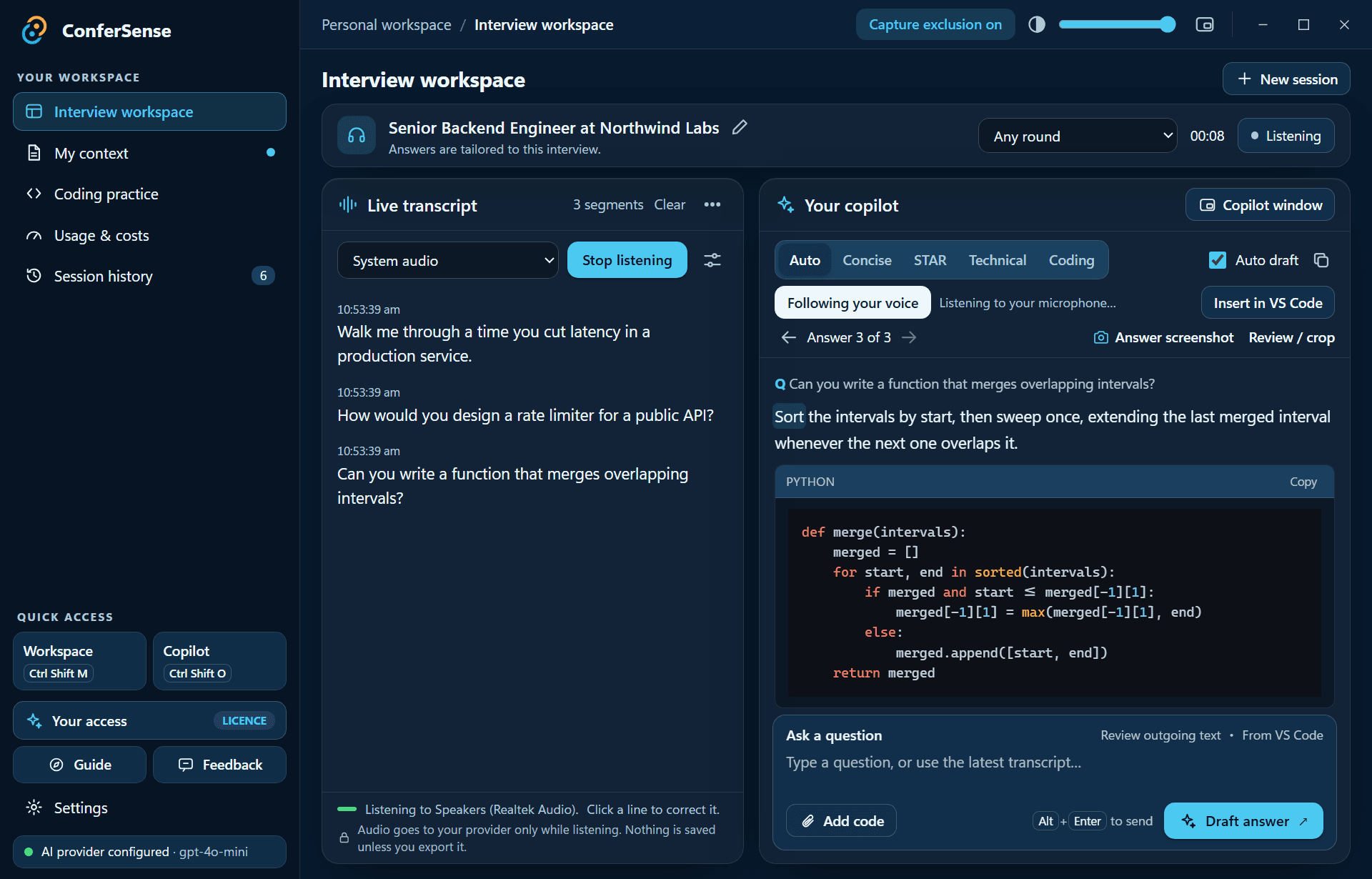
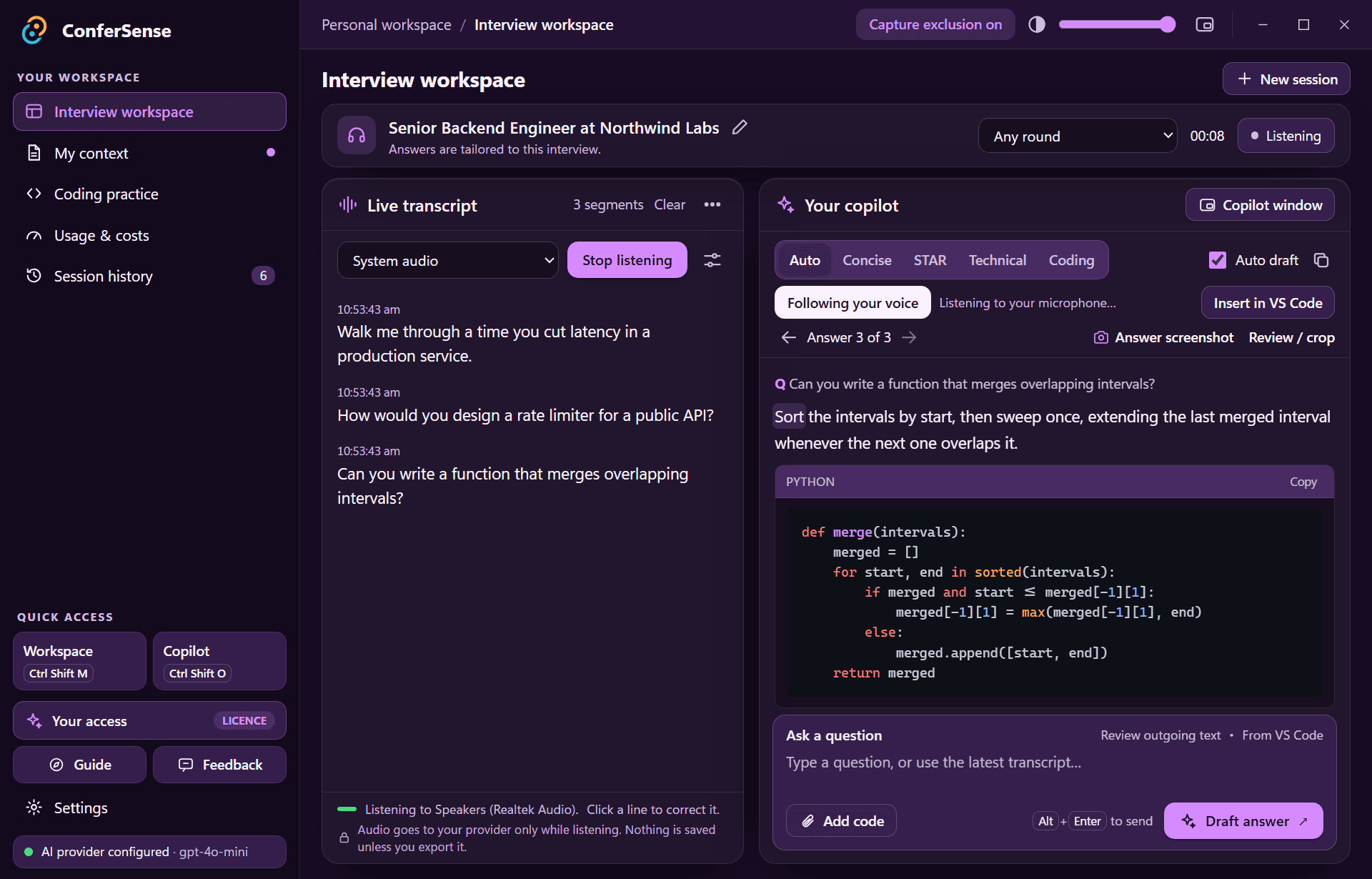
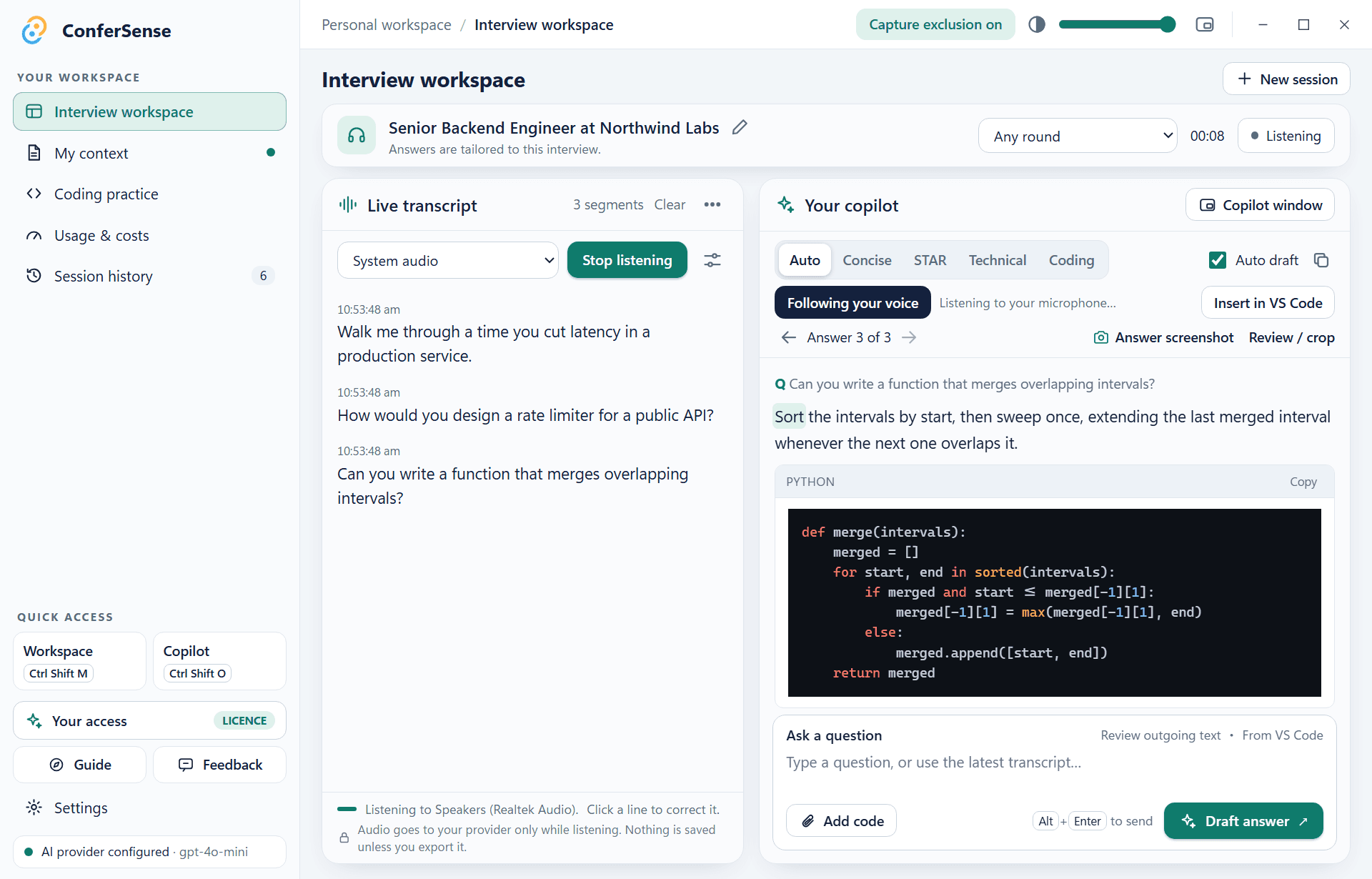
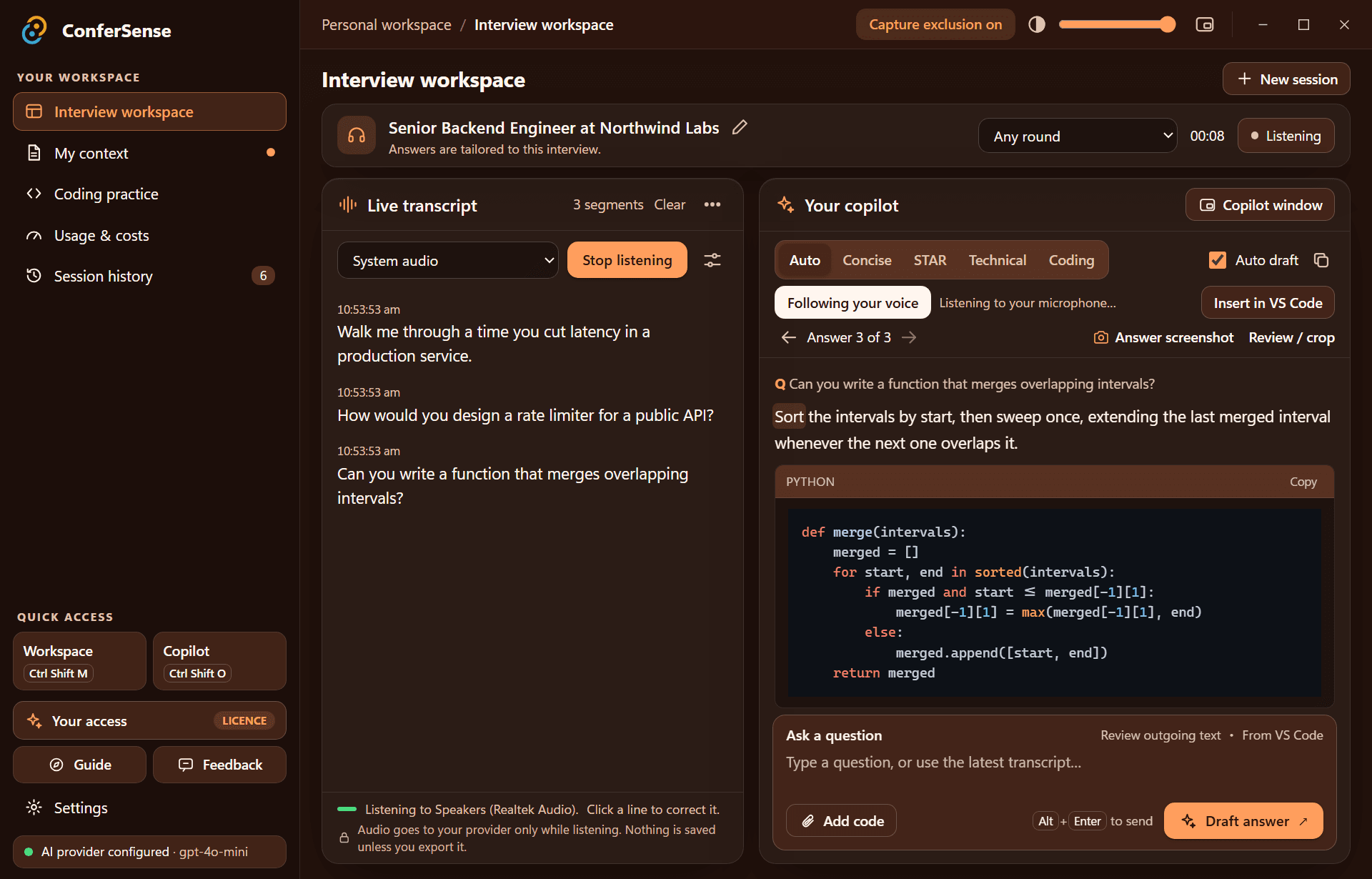
Seven themes, including one that matches this website, and a glass-opacity slider that makes the windows see-through.
Keeps itself current
Updates download quietly and install when you press Restart. Only signed releases are accepted.
Seven themes. Your look.
Built like infrastructure.
A native Windows app (Rust and React) with a local server for the heavy lifting. Your keys sit in Windows Credential Manager, the access check runs in compiled code, and updates are signature-verified before they install.
  capture     WASAPI loopback · 48 kHz stereo → 16 kHz mono
  transcribe  streaming speech-to-text · automatic fallback
  retrieve    your resume + the job, matched per question
  answer      first word in about 1 s · streamed
  guard       per-computer access · re-checked every 5 min
  update      minisign-verified · installed on restart
Your interview is yours.
There is no ConferSense cloud holding your conversations. You bring your own keys and everything else stays on your computer.
Keys in the Windows vault
API keys live in Windows Credential Manager. The app can use them but never shows them back.
Sessions stay local
History, resume and notes are saved on your computer only, and you can switch history off entirely.
Microphone off by default
It only turns on for the reading guide, and only if you allow it.
Signed updates only
A new version installs only if it carries the owner's signature.
Good to know.
Who can use it?
ConferSense is invite-only. Each person gets a personal access code that unlocks it on one computer, and the owner can switch a code off at any time.
What does it cost to run?
You bring your own API keys, so you pay the AI providers directly, usually a few cents an interview. The Usage page shows what each session cost.
Where does my data go?
Audio and text go only to the AI providers whose keys you added, to make transcripts and answers. Sessions are stored on your computer. There is no ConferSense account and nothing is hosted for you. The only thing we see is your access code and computer name, to check it is still valid.
Does it use my microphone?
Not unless you turn on the reading guide and allow it. The microphone then only moves the highlight and adds what you said as context. It never answers by itself and nothing is saved.
Can screen sharing see it?
With Stealth mode on, ConferSense asks Windows to leave its windows out of screen capture, so Zoom, Teams, Meet, Webex and recorders such as OBS show your screen without it. It also hides from the taskbar and Alt-Tab. This is a Windows feature (Windows 10 version 2004 or newer) that works against software capture. It cannot hide anything from a camera pointed at your screen or a capture card, and monitoring software on your computer may still see it, so do a practice share before you rely on it.
Why does Windows warn me when I install?
The installer is not signed with a paid code-signing certificate yet, so Windows SmartScreen shows a warning. The install guide shows how to continue, and updates are separately signed so only genuine versions install.
Is it okay to use in interviews?
That is your call. Check the rules of the company and the interview, and use it responsibly.
Walk in prepared.
Free to download. Unlocked with the access code you were given.
Windows 10 (2004 or newer) or 11, 64-bit. Updates itself after install.